
How to Use Xbox Game Bar
Xbox Game Bar is one of those Windows features that sits quietly in the background until you need it. It is a free overlay that ships inside Windows 10 and 11, and it does a lot more than record clips. Here is a plain guide to what it is, how to open it, and how to pin widgets so the tools you want stay on screen while you play.
What is Xbox Game Bar?
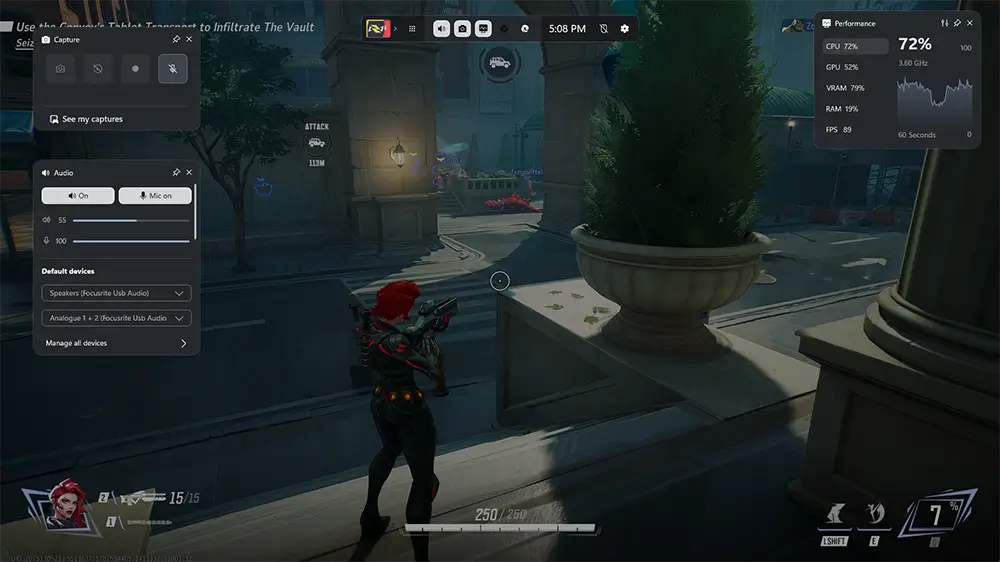
Xbox Game Bar is a system overlay from Microsoft. It ships inside Windows 10 and 11, so there is nothing to download. You press a shortcut, a set of panels slides over your screen, and you can capture clips, check performance, adjust audio, chat with friends, and run small tools that Microsoft calls widgets. It works over full games, regular apps, and the desktop.
How to open Xbox Game Bar
The fastest way is the keyboard shortcut. Press Windows + G and the overlay opens. If you play on a controller, the Xbox button on an Xbox controller can bring it up too. You can check or change the shortcut under Settings > Gaming > Xbox Game Bar, and you can switch the whole feature on or off in the same place.
The default widgets
Out of the box, Game Bar comes with a handful of widgets:
- Capture. Record a clip, grab a screenshot, or start a longer recording.
- Performance. Watch your frame rate, CPU, GPU, and RAM in real time.
- Audio. Set the volume of your game, voice chat, and other apps without a single alt-tab.
- Gallery. Find the clips and screenshots you captured.
- Resources. See which apps use your system, and close the ones you do not need.
- Xbox social. See who is online and chat without leaving the game.
How to pin a widget
Pinning is the part that makes Game Bar genuinely useful in a match. A pinned widget stays on screen over your game, even after you close the rest of Game Bar. Here is how it works:
Open Game Bar
Press Windows + G while your game or app is running.
Open the widget menu
Click the widget menu icon on the home bar, then pick the widget you want.
Pin it
Click the pin icon in the top corner of the widget. That locks it in place on your screen.
Place and resize
Drag the widget where you want it and resize it to taste. Press Windows + G again to dismiss the rest of Game Bar, and your pinned widget stays put.
Add more from the Widget Store
Game Bar is not limited to the built-in widgets. The Widget Store lets you install extra ones. Open Game Bar, click the widget menu, and choose Widget Store at the bottom. From there you can add widgets for things like FPS counters, timers, music control, and custom crosshairs.
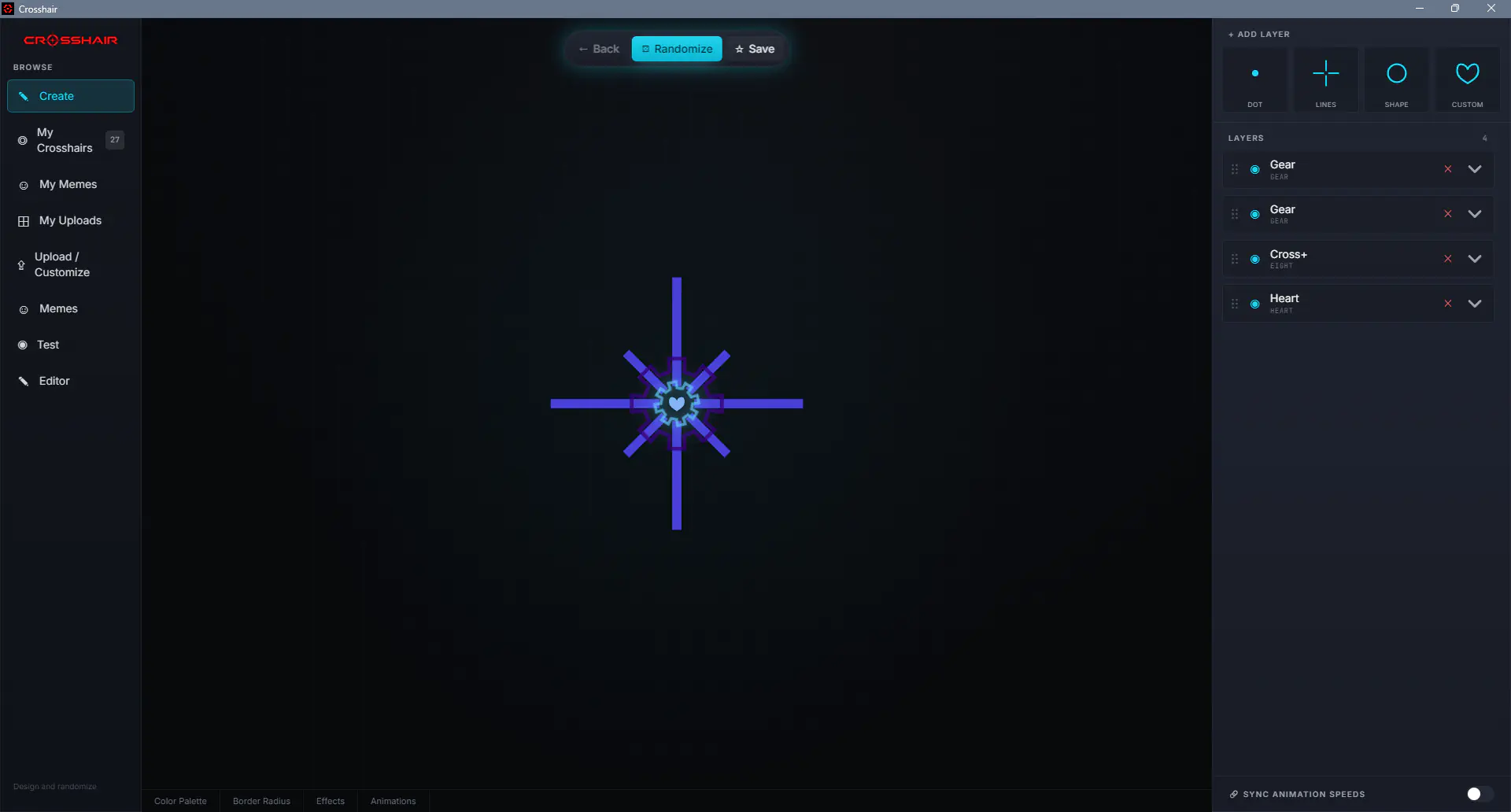
That last one is us. Crosshair Overlay is a Game Bar widget. You pin it the same way as any other widget, and a clean, customizable crosshair sits on top of your game.
What is new in Game Bar for 2025 and 2026
Microsoft has been busy with Game Bar lately, and the headline addition is AI.
- Gaming Copilot. This is an AI sidekick that lives in Game Bar. It can answer questions about the game you are playing, read the screen for context when you ask in voice mode, and hand you tips without a second device. It started rolling out to PC players inside Game Bar in September 2025, reached the Xbox mobile app in November 2025, and Microsoft has said it is coming to Xbox consoles in 2026. There are two voice modes: push to talk, and a mini mode that you can pin and keep talking to while you play.
- Full Screen Experience. Late in 2025, Microsoft rolled out a controller-first, console-style interface for Windows handhelds such as the ROG Xbox Ally, and it is expanding to more Windows 11 PCs. Game Bar is the in-game overlay inside that experience.
Sources
Xbox Game Bar questions, answered
Pin a crosshair in Game Bar
Crosshair Overlay is a Game Bar widget. Pin a clean, customizable crosshair over any PC game. One-time $2.99, no subscription.